
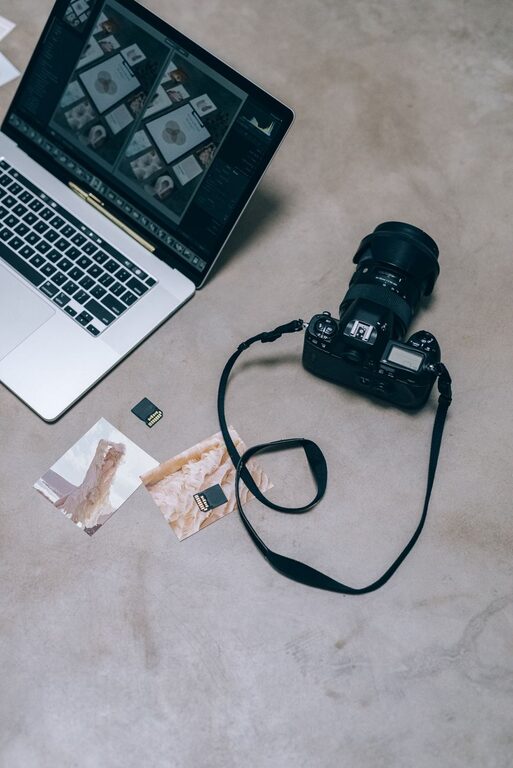
Keeping photos and files organized can save time, reduce stress, and make everyday computer tasks easier. Whether you have years of family photos, work documents, downloaded files, or school projects, a simple system can help you find what you need without searching through dozens of folders.
The best organization method is one that is easy to understand and simple enough to maintain. You do not need special software or advanced computer skills. With a few practical habits, you can create a cleaner digital workspace and keep it that way.
Start With a Quick Cleanup
Before creating a new system, take a few minutes to review what is already on your computer. Look through common storage areas such as:
– The desktop
– The Downloads folder
– The Documents folder
– The Pictures or Photos folder
– External drives
– Folders created by older programs
You may find duplicate files, outdated downloads, temporary items, or documents you no longer need. Avoid trying to organize every file at once. Begin with a small area, such as the desktop or Downloads folder, and work from there.
Create three temporary categories:
– Keep
– Delete
– Review later
Move files into these groups as you sort. The “Review later” folder can prevent you from getting stuck on files you are unsure about. Set a reminder to check it again after a few weeks.
Create a Simple Folder Structure
A clear folder structure is the foundation of good file organization. Start with broad categories, then add smaller folders only when needed.
For example, your main folders might include:
– Documents
– Photos
– Work
– Personal
– Projects
– Receipts
– Archive
Inside the Photos folder, you could create folders by year:
– Photos
– 2024
– 2025
– 2026
You can then add event-based folders inside each year, such as “Summer Trip,” “Birthday,” or “Holiday Gathering.”
For documents, organize files by purpose or project. A simple structure might look like this:
– Documents
– Home
– School
– Work
– Travel
– Taxes
– Manuals
Avoid creating too many levels of folders. If you have to open five or six folders to reach one file, your system may be too complicated. Most people can manage two or three levels comfortably.
Use Consistent File Names
Clear file names make files easier to search and identify. Instead of using names such as “IMG_4832” or “Document1,” include useful details.
For photos, try a format like:
`2026-06-14 Family Picnic`
For documents, use names such as:
`2026-04 Home Insurance Information`
A useful file name may include:
– The date
– The subject
– The event or project
– A version number, if needed
Use the same style each time. Dates work especially well when written as year, month, and day because files sort in the correct order. For example, “2026-03-08” sorts more naturally than “March 8 2026.”
Keep names short enough to read easily, and avoid adding unnecessary words. You may also want to avoid special symbols that some programs do not handle well.
Organize Photos by Year and Event
Photo collections can grow quickly, especially when you use a phone, camera, and messaging apps. Organizing photos by year and event is one of the easiest systems to maintain.
A practical example is:
– Photos
– 2024
– Beach Trip
– Family
– Holidays
– 2025
– New Home
– Weekend Trips
– Celebrations
If you take many photos, you can separate them into “Best Photos,” “To Edit,” and “To Print.” However, avoid making too many categories. The main goal is to find photos quickly, not to build a perfect archive.
Consider deleting blurry images, accidental screenshots, repeated pictures, and photos you no longer want. If you are unsure, move them to a temporary folder instead of deleting them immediately.
Sort the Downloads Folder Regularly
The Downloads folder often becomes a collection of files that were needed once and then forgotten. Set aside a few minutes each week or month to review it.
For each item, decide whether to:
– Move it to a permanent folder
– Rename it
– Delete it
– Keep it temporarily
Downloaded documents should be moved to folders such as Work, Personal, or Receipts. Images can be moved to the appropriate Photos folder. Program installers and temporary files can usually be deleted after the program has been installed, provided you no longer need them.
A regular Downloads cleanup prevents clutter from spreading to other parts of your computer.
Separate Current Files From Older Files
If your folders contain years of documents, separate current items from older ones. You can create an Archive folder for files that you want to keep but rarely use.
For example:
– Work
– Current
– Archive
– Projects
– Active
– Completed
This keeps active files easy to find while preserving older information. You can also create yearly archive folders, such as “Archive 2024” and “Archive 2025.”
Do not move files so far out of sight that you forget where they are. Keep the Archive folder in a familiar location and use clear names.
Use Search and Sort Features
Your computer’s built-in search tools can help you find files by name, type, date, or location. Search is especially useful when you remember part of a file name but not the exact folder.
Sorting files by these options can also make a folder easier to review:
– Name
– Date modified
– File type
– File size
Sorting by size can help you find large videos or old downloads that use a lot of storage. Sorting by date can show which files are recent and which have not been opened for years.
Good file names and folder locations make search tools even more effective.
Keep Your Desktop Clear
The desktop should be a temporary workspace, not a permanent storage area. Too many desktop files can make it difficult to find important items and may slow down your routine.
Try keeping only:
– Frequently used shortcuts
– A temporary folder for current tasks
– A small number of active files
Move completed projects to their proper folders. If you need quick access to a folder, create a shortcut rather than placing multiple copies of the same files on the desktop.
Build a Backup Habit
Organization protects your files from clutter, while backups protect them from loss. Important photos and documents should exist in more than one location.
You can back up files using:
– An external storage drive
– A trusted cloud storage service
– A second computer
– A combination of these options
Choose a method that fits your needs and use it regularly. Automatic backups can make the process easier because they reduce the chance of forgetting.
Keep at least one backup separate from your computer. If your computer stops working, a backup stored only on that computer will not be useful.
Create a Routine You Can Maintain
A simple routine is more effective than a complicated system you use only once. Set aside a few minutes each week to review new files and photos.
A basic routine may include:
- Clear the Downloads folder.
- Move new photos into the correct year and event folders.
- Rename important files.
- Delete duplicates and temporary items.
- Run or check your backup.
- Empty the desktop of completed work.
The most important rule is consistency. When you organize files as you create or download them, the task takes only a few seconds. Small habits can prevent large digital messes from building up.
Final Thoughts
Organizing photos and files does not require a complicated system. Start with broad folders, use clear names, remove unnecessary items, and review your files regularly. Add a dependable backup routine, and your digital collection will be easier to manage and safer to keep.
Choose one folder to organize today. Once the process becomes familiar, you can apply the same approach to the rest of your computer.